
User Guide
How to use Front Office
Short steps for everyday staff work. Screenshots use practice data only. For the exact product rules, use the Learn more articles.
1. Getting started
- Sign in with your Resolute Google account.
- Your photo sits at the top right.
- Open that menu for User Guide, My Profile, Service Desk, and About.
- Use the tools rail for Home, Rosters, Team Builder, Registrations, Members, Late Invoices, and Clubhouse.
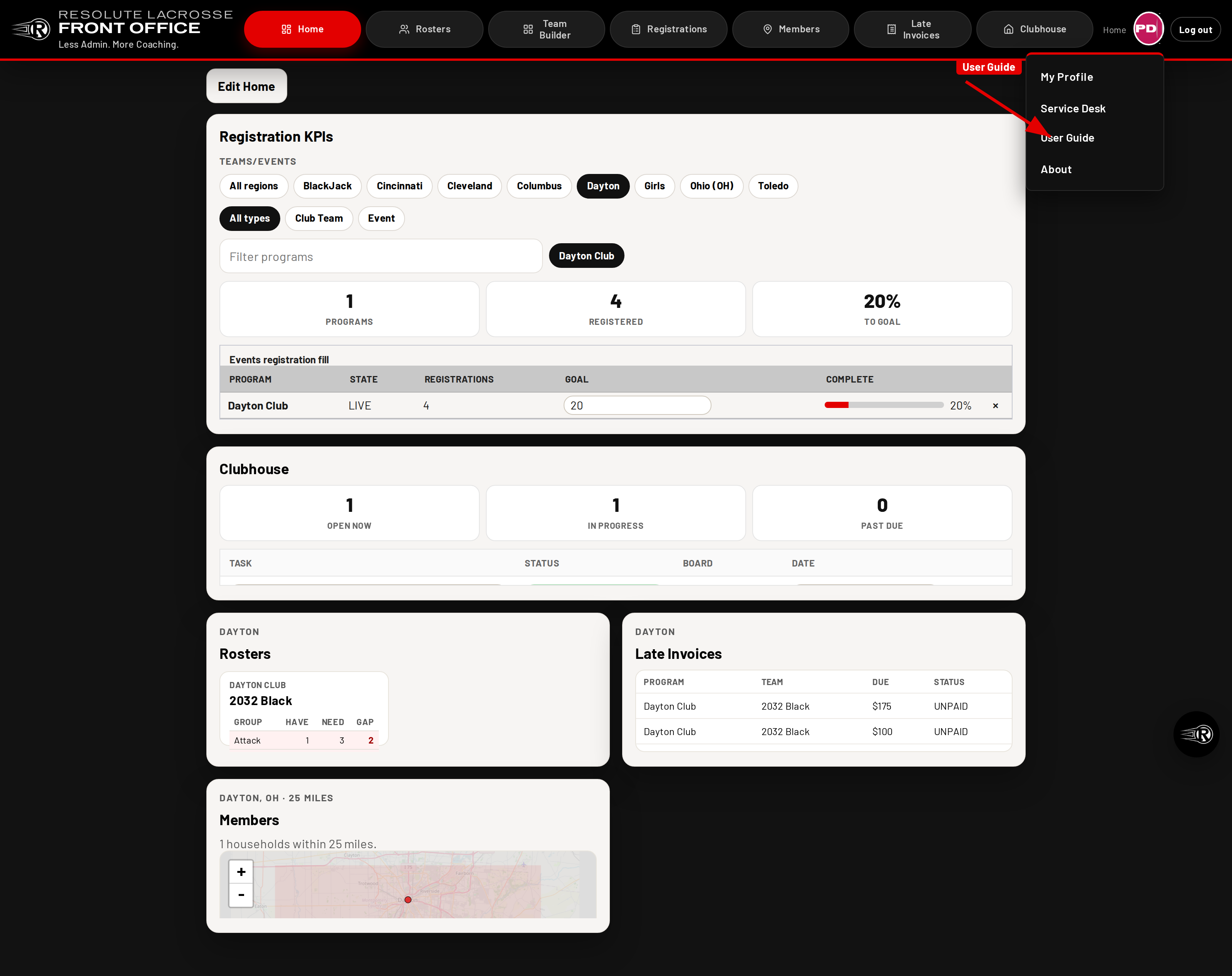
Shot user-guide-profile-menu. Capture with
python -m app.docs_screenshots --feat user-guide.
Synthetic fixtures only.
2. Home
Home is live Home Mosaic. Directors and Admins land here after sign-in.
- Read the tiles: Registration KPIs, Clubhouse, Rosters, Late Invoices, and Members.
- Select a region chip so Rosters, Late Invoices, and Members stay in that region.
- Open a tile to jump into that tool with the same region.
- If the header says Updating next to your photo, Home is still loading tiles. When it says Home, the tiles are ready.
- On a computer, Edit Home lets you move or resize tiles. Phones keep one column.
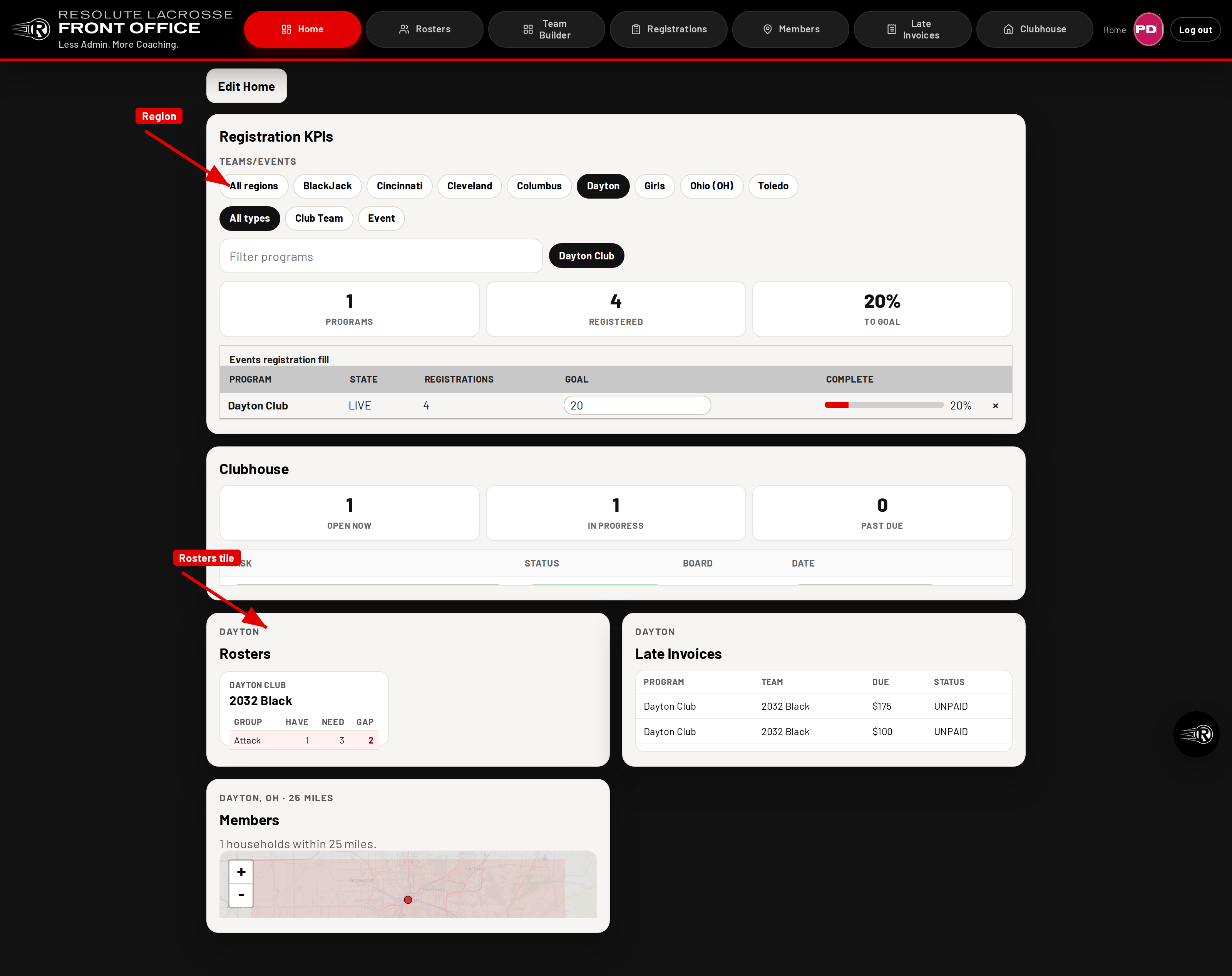
Shot user-guide-home-mosaic. Capture with
python -m app.docs_screenshots --feat user-guide.
Synthetic fixtures only.
Learn more: Home Mosaic
3. Clubhouse & Team Works
- Open Clubhouse from the rail or the Home Clubhouse tile.
- Boards hold tasks. Type in a row to keep it. There is no extra Save.
- Team Works is the first item in the left tree. It lists open work across boards.
- People shows staff tasks. Teams/Events shows live and upcoming events and goals.
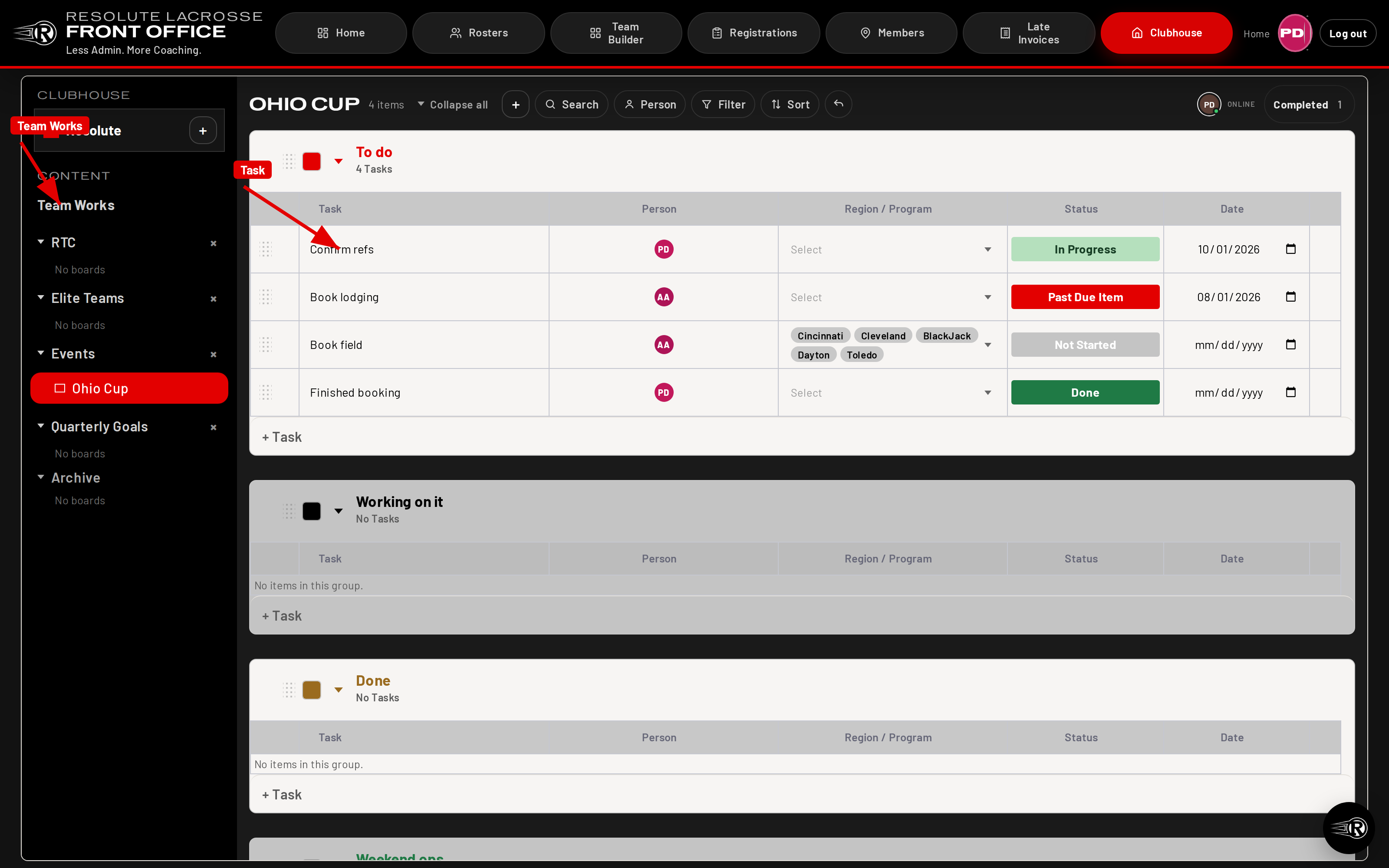
Shot user-guide-clubhouse. Capture with
python -m app.docs_screenshots --feat user-guide.
Synthetic fixtures only.
Learn more: Clubhouse workspace · Clubhouse tasks · Team Works
4. Registrations & Late invoices
- Open Registrations for program counts, Now, and Trend.
- The rail shows every region, not only the Home chip you last used.
- Open Late Invoices for unpaid rows. The list is the last sync snapshot, not a live LeagueApps pull.
- Use Refresh only when you need current LeagueApps numbers.
- Use Export CSV when you need a contact list. That export stays inside Front Office.
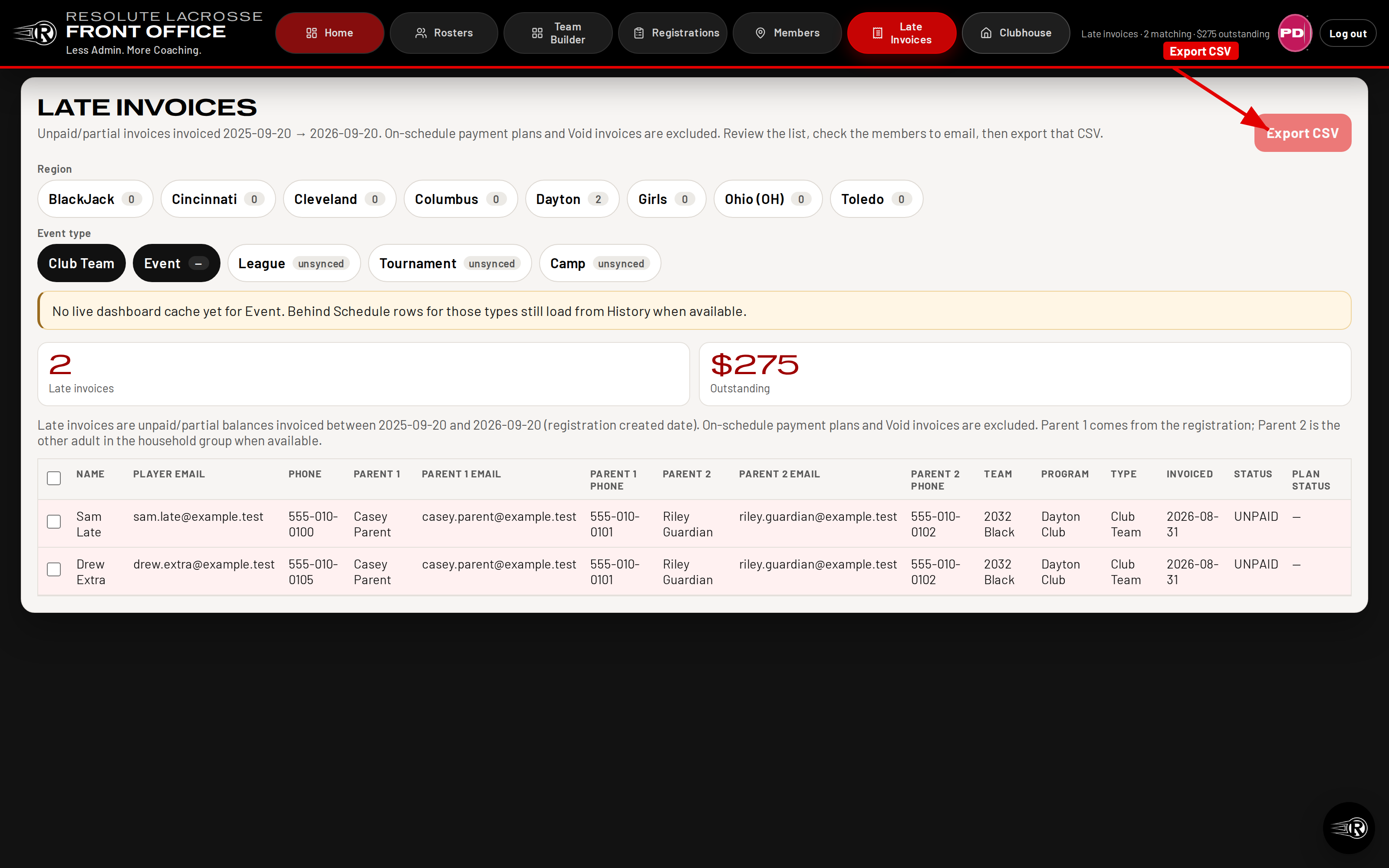
Shot user-guide-late-invoices-export. Capture with
python -m app.docs_screenshots --feat user-guide.
Synthetic fixtures only.
Learn more: Registrations access · Late invoices list · Late invoices export
5. Team Builder & Saved teams
- Open Team Builder and add a Live or Upcoming program.
- Pool is on the left. Built team is on the right, grouped by position.
- Move players onto Attack, Midfield, Defense, or Goalie.
- Save the team, then open View Saved Teams to name an owner.
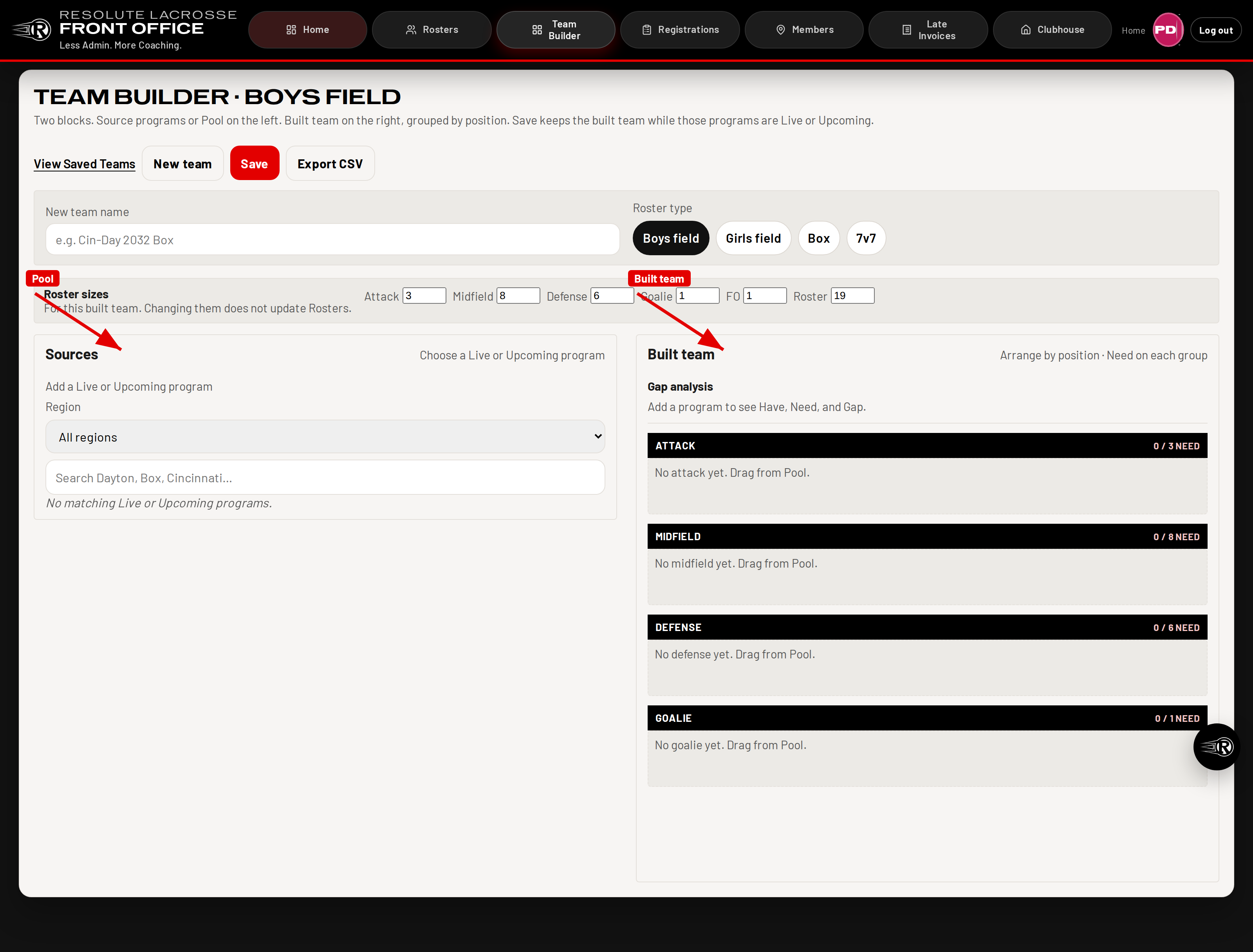
Shot user-guide-team-builder. Capture with
python -m app.docs_screenshots --feat user-guide.
Synthetic fixtures only.
Learn more: Team builder preview · Saved built teams
6. Members
- Open Members from the rail or the Home Members tile. The map starts at your selected region with a 25 mile radius.
- Search a city, LeagueApps location, or address, or click the map, to move the radius. The map uses ZIP centroids, not street pins.
- Pick All, Boys, or Girls. Uncheck All grad years to choose a range from 2027. A new grad year is added every January 1.
- Member Email is not in this guide yet. There is no Member Email body here.
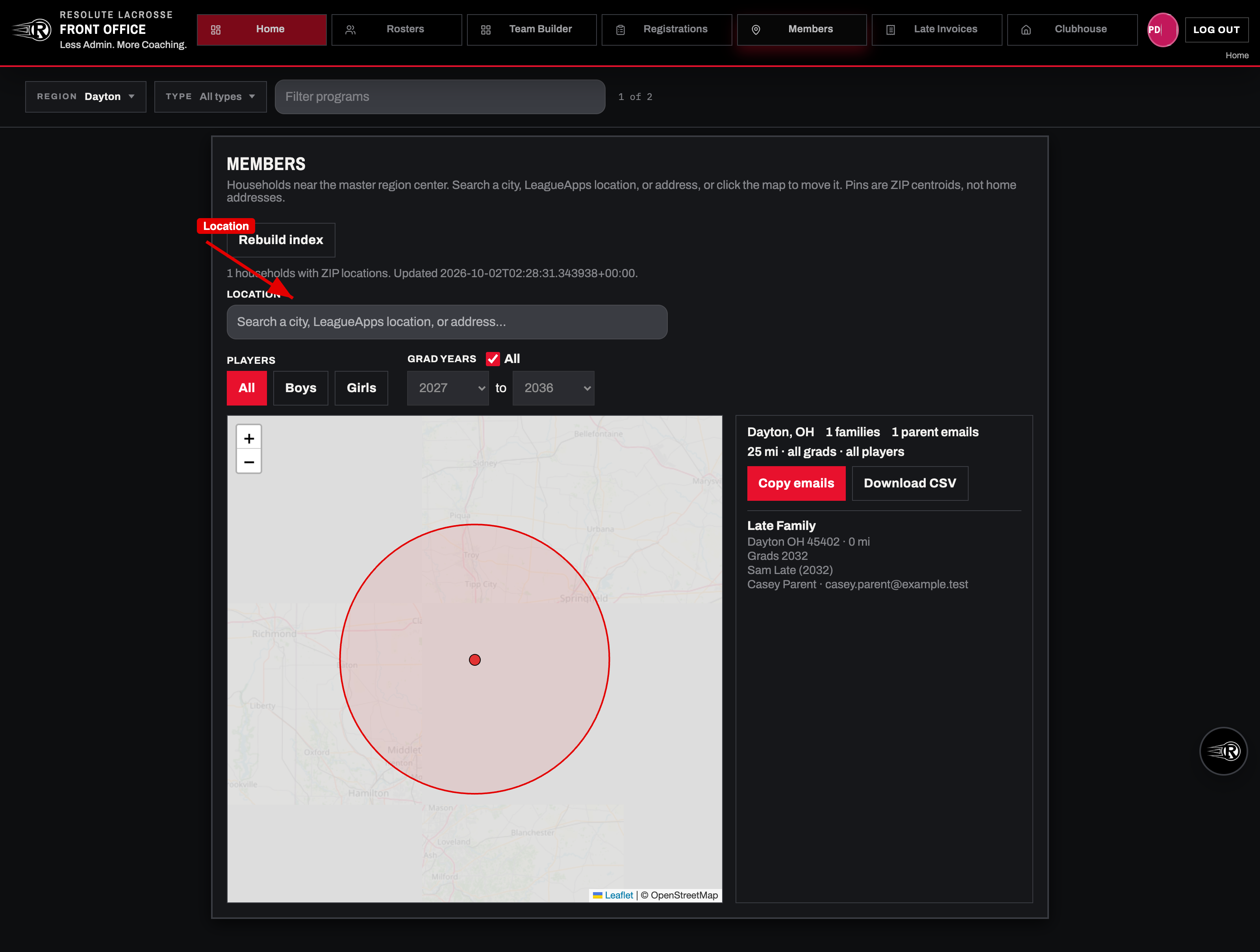
Shot user-guide-members-search. Capture with
python -m app.docs_screenshots --feat user-guide.
Synthetic fixtures only.
Learn more: Member location search
7. History & Ask Reso
- Registrations can open the full History warehouse.
- History holds program counts, not player names or emails.
- Ask Reso stays in the corner. Ask for counts, not a roster dump.
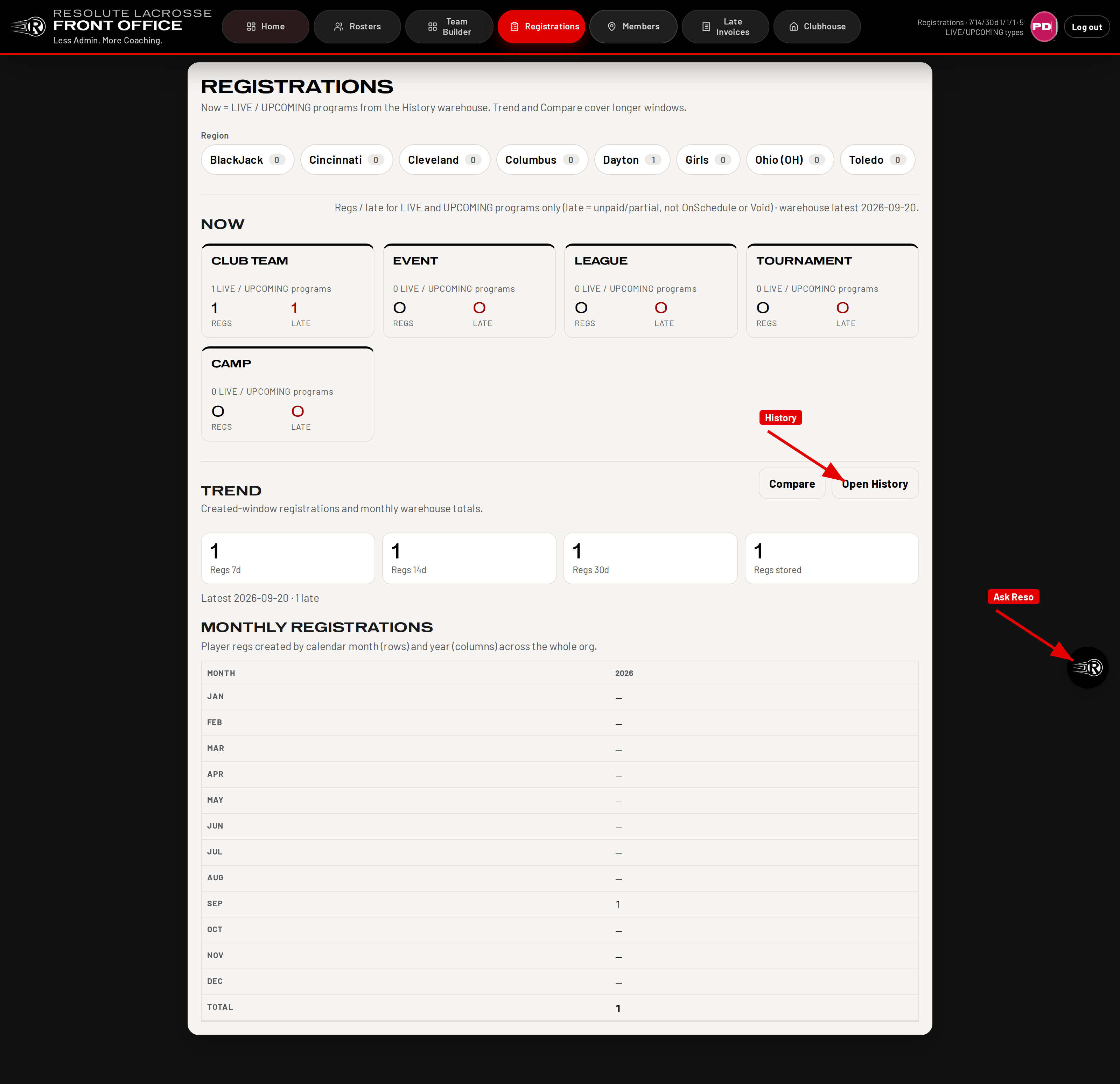
Shot user-guide-history-ask-reso. Capture with
python -m app.docs_screenshots --feat user-guide.
Synthetic fixtures only.
Learn more: History warehouse · History Now and Compare · Ask Reso
8. Admin / Profile / About
- My Profile lets you set first name, last name, and Google login.
- Admins open Users from the same photo menu.
- About shows the Front Office name, version, and build.
Learn more: My Profile · Users directory · Release version
9. Get help
- Use this User Guide for short how-to steps.
- Open Service Desk from the Profile menu when something is broken or you need a change.
- Deep product rules live on the User Guide hub and the Learn more articles.